- Linux Networking Explained: Interfaces, IP Addresses, Routes, and the Default Gateway
- 1. Start with the Big Picture
- 2. What Is a Network Interface?
- Physical Interface
- Virtual Interface
- Loopback
- Bridge / Tunnel
- Common Linux Interface Names
- 3. Inspect Interfaces with ip addr
- 4. IP Addresses: The Server’s Network Identity
- Private vs Public IPv4 Addresses
- 5. What Does /24 Mean?
- Common Prefix Lengths
- 6. The Loopback Interface
- 7. What Is a Routing Table?
- 8. Reading ip route Line by Line
- Local Network Route
- Default Route
- 9. What Is the Default Gateway?
- 10. How Linux Chooses a Route
- 11. Ask Linux Which Route It Will Use
- 12. Interface State with ip link
- 13. A Practical Linux Network Troubleshooting Sequence
- Check Interfaces
- Check Addresses
- Check Routes
- Check Route Selection
- 14. Test the Network Layer by Layer
- Step 1 — Test Loopback
- Step 2 — Test the Gateway
- Step 3 — Test an External IP Address
- Step 4 — Test DNS Resolution
- 15. Understanding a Common Failure Scenario
- 16. The Commands You Should Remember
- 17. Interfaces, Addresses, Routes, and Ports Are Different Layers
- 18. A Packet’s Journey
- 19. Quick Troubleshooting Cheat Sheet
- The Mental Model to Remember
Linux Networking Explained: Interfaces, IP Addresses, Routes, and the Default Gateway
A Linux server can have several network interfaces, multiple IP addresses, dozens of routes, and more than one possible path to the outside world. This guide explains how those pieces fit together — and how Linux decides where every network packet should go.
When you connect to a server over SSH, open a website, query a DNS server, or download a package, Linux has to answer a fundamental question: where should this packet be sent?
The answer comes from a chain of networking concepts:
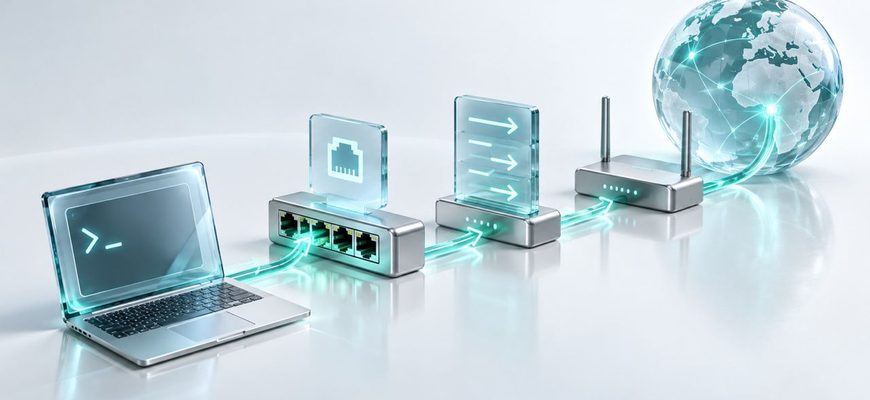
network interface → IP address → subnet → route → gateway → destination.
Once you understand that chain, commands such as ip addr and
ip route stop looking like cryptic system output.
1. Start with the Big Picture
Imagine a Linux server that needs to send a packet to 8.8.8.8.
Before anything leaves the machine, the kernel must determine which network
interface should carry the packet and where it should be sent next.
Linux makes this decision using its routing table. But before we examine routes, we need to understand the interface that actually connects the server to the network.
2. What Is a Network Interface?
A network interface is the operating system’s connection point to a network. It can represent a physical Ethernet adapter, a virtual network adapter, a loopback device, a bridge, a VPN tunnel, or another networking mechanism.
Physical Interface
On physical servers, an interface may correspond directly to a network adapter installed in the machine.
Virtual Interface
VPS and cloud servers commonly expose virtual NICs created by the hypervisor or cloud networking platform.
Loopback
The lo interface allows applications on the same
machine to communicate through the networking stack.
Bridge / Tunnel
Containers, virtualization platforms, VPNs, and overlay networks can create additional software-defined interfaces.
Common Linux Interface Names
| Interface | Typical Meaning | Where You May See It |
|---|---|---|
lo |
Loopback interface | Almost every Linux system |
eth0 |
Traditional Ethernet naming | Older systems, VMs, containers |
ens3 |
Predictable Ethernet interface name | Common on VPS and virtual machines |
enp1s0 |
Ethernet interface based on hardware location | Modern Linux distributions |
docker0 |
Docker bridge interface | Docker hosts |
br0 |
Network bridge | Virtualization and custom networking |
3. Inspect Interfaces with ip addr
The modern Linux networking toolkit is provided by iproute2. One of the first commands to learn is:
$ ip addr
A simplified result may look like this:
1: lo: <LOOPBACK,UP,LOWER_UP>
    inet 127.0.0.1/8 scope host lo

2: ens3: <BROADCAST,MULTICAST,UP,LOWER_UP>
    link/ether 52:54:00:ab:cd:ef
    inet 192.168.1.20/24 brd 192.168.1.255
    inet6 fe80::5054:ff:feab:cdef/64 scope link
There is a lot of information here, but the important parts are easier to understand when separated.
| Value | Meaning |
|---|---|
ens3 |
The network interface name |
UP |
The interface is administratively enabled |
52:54:00:ab:cd:ef |
MAC address of the interface |
192.168.1.20 |
IPv4 address assigned to the interface |
/24 |
Prefix length describing the IPv4 subnet |
fe80::... |
IPv6 link-local address |
4. IP Addresses: The Server’s Network Identity
An IP address identifies an interface at the IP layer. A server can have one IP address, several addresses on the same interface, or addresses distributed across multiple interfaces.
Private vs Public IPv4 Addresses
Private IPv4 ranges are reserved for internal networking and are not globally routed across the public Internet.
| Private Range | CIDR | Common Use |
|---|---|---|
| 10.0.0.0 – 10.255.255.255 | 10.0.0.0/8 |
Cloud and large private networks |
| 172.16.0.0 – 172.31.255.255 | 172.16.0.0/12 |
Private networks and containers |
| 192.168.0.0 – 192.168.255.255 | 192.168.0.0/16 |
LANs and smaller private networks |
5. What Does /24 Mean?
When Linux displays an address such as:
192.168.1.20/24
the /24 is the prefix length. It tells Linux
how much of the IPv4 address identifies the network.
A /24 corresponds to the subnet mask
255.255.255.0. In this example, the subnet is:
192.168.1.0/24
Addresses inside that subnet can normally be reached directly at the local network layer. Traffic for destinations outside the subnet usually requires a router.
Common Prefix Lengths
| Prefix | Subnet Mask | Total IPv4 Addresses |
|---|---|---|
/8 |
255.0.0.0 | 16,777,216 |
/16 |
255.255.0.0 | 65,536 |
/24 |
255.255.255.0 | 256 |
/32 |
255.255.255.255 | 1 |
6. The Loopback Interface
Every Linux administrator should recognize:
127.0.0.1
This is the familiar IPv4 loopback address, commonly associated with
localhost. Traffic sent to it does not leave the machine.
Applications frequently bind to 127.0.0.1 when they should
only be reachable locally.
$ ping -c 4 127.0.0.1
7. What Is a Routing Table?
Having an IP address is not enough. Linux also needs rules telling it which path to use for different destination networks.
Those rules live in the routing table.
Display the main routing table with:
$ ip route
You may see:
default via 192.168.1.1 dev ens3
192.168.1.0/24 dev ens3 proto kernel scope link src 192.168.1.20
8. Reading ip route Line by Line
Local Network Route
192.168.1.0/24 dev ens3 proto kernel scope link src 192.168.1.20
This tells Linux that the 192.168.1.0/24 network is
directly reachable through ens3.
Default Route
default via 192.168.1.1 dev ens3
This tells Linux to send traffic that does not match a more specific
route to 192.168.1.1 through ens3.
9. What Is the Default Gateway?
The default gateway is the next-hop router Linux uses when it does not have a more specific route for a destination.
Suppose the server is:
Server IP:       192.168.1.20/24
Default gateway: 192.168.1.1
Destination:     8.8.8.8
8.8.8.8 is not part of 192.168.1.0/24.
The server therefore cannot treat it as a directly connected host.
Linux finds the default route and forwards the packet toward
192.168.1.1. The router then takes responsibility for
forwarding it toward its final destination.
10. How Linux Chooses a Route
Linux does not simply use the default gateway for every packet. It first looks for a route that best matches the destination.
In general, the most specific matching prefix is preferred. This is commonly called longest prefix matching.
default via 10.0.0.1 dev ens3
10.0.0.0/8 dev ens3
10.20.0.0/16 via 10.0.0.2 dev ens3
For a destination such as 10.20.5.10, the
10.20.0.0/16 route is more specific than
10.0.0.0/8, so the more specific route is selected.
11. Ask Linux Which Route It Will Use
One of the most useful troubleshooting commands is:
$ ip route get 8.8.8.8
Example output:
8.8.8.8 via 192.168.1.1 dev ens3 src 192.168.1.20
This immediately tells you several useful things:
- The destination Linux evaluated is
8.8.8.8. - The next-hop gateway is
192.168.1.1. - The outgoing interface is
ens3. - The selected source address is
192.168.1.20.
12. Interface State with ip link
If networking fails, checking whether an interface is enabled is a good early diagnostic step.
$ ip link
Or inspect a specific interface:
$ ip link show ens3
An interface can exist and even have configuration associated with it while still being administratively down, so interface state matters during troubleshooting.
13. A Practical Linux Network Troubleshooting Sequence
When a Linux server cannot reach the network, avoid randomly running commands. Test the networking path in layers.
Check Interfaces
$ ip link
Verify that the expected network interface exists and is up.
Check Addresses
$ ip addr
Verify that the interface has the expected IPv4 or IPv6 address.
Check Routes
$ ip route
Look for the connected network and an appropriate default route.
Check Route Selection
$ ip route get 1.1.1.1
See exactly how Linux intends to reach a destination.
14. Test the Network Layer by Layer
Step 1 — Test Loopback
$ ping -c 4 127.0.0.1
This verifies basic local IP networking. It does not test the physical or virtual network outside the host.
Step 2 — Test the Gateway
$ ping -c 4 192.168.1.1
If the gateway responds, the server can communicate with at least that local network endpoint. Keep in mind that some systems intentionally block ICMP echo requests, so a failed ping is not always definitive proof that the gateway is unreachable.
Step 3 — Test an External IP Address
$ ping -c 4 1.1.1.1
If an external IP is reachable but domain names fail, the underlying IP path may be working while DNS resolution is broken.
Step 4 — Test DNS Resolution
$ getent hosts example.com
getent is useful because it queries name resolution through
the system’s configured Name Service Switch mechanisms rather than
assuming DNS is the only possible source.
15. Understanding a Common Failure Scenario
Suppose a server shows:
inet 10.10.5.20/24 dev ens3
but ip route only shows:
10.10.5.0/24 dev ens3 proto kernel scope link src 10.10.5.20
The server knows how to reach hosts on 10.10.5.0/24, but
there is no default route shown.
Unless another routing table or policy-routing rule supplies a path, ordinary traffic to destinations outside the directly connected subnet will have no matching route.
16. The Commands You Should Remember
ip addr
Show interface addresses.
ip -br addr
Show a compact address overview.
ip link
Inspect interface state.
ip route
Display IPv4 routes.
ip -6 route
Display IPv6 routes.
ip route get IP
Ask the kernel which route it would use.
ping HOST
Send ICMP echo requests when permitted.
getent hosts NAME
Test system hostname resolution.
ss -tulpn
Inspect listening TCP and UDP sockets.
17. Interfaces, Addresses, Routes, and Ports Are Different Layers
Beginners often mix these concepts together. They are related, but they answer different questions.
| Concept | Main Question | Example |
|---|---|---|
| Interface | Which network connection is being used? | ens3 |
| IP address | Which IP identity is configured? | 192.168.1.20 |
| Subnet | Which address range is considered part of the network? | 192.168.1.0/24 |
| Route | Which path should traffic take? | default via 192.168.1.1 |
| Gateway | Which next-hop router should receive the packet? | 192.168.1.1 |
| Port | Which application endpoint should receive transport traffic? | 22, 80, 443 |
18. A Packet’s Journey
We can now put the entire process together.
- An application generates network traffic for a destination.
- The Linux kernel evaluates the destination IP address.
- The routing rules and tables determine the appropriate route.
- Linux selects an outgoing interface and source address.
- If required, the packet is sent toward a next-hop gateway.
- Routers continue forwarding the packet toward the destination.
- Transport-layer information such as TCP or UDP ports identifies the relevant application endpoint.
19. Quick Troubleshooting Cheat Sheet
| Question | Command |
|---|---|
| What interfaces exist? | ip link |
| Which IP addresses are configured? | ip addr |
| What is the compact interface/address view? | ip -br addr |
| What routes exist? | ip route |
| What is the default gateway? | ip route | grep default |
| How would Linux reach an IP? | ip route get 1.1.1.1 |
| Does loopback respond? | ping -c 4 127.0.0.1 |
| Does hostname resolution work? | getent hosts example.com |
The Mental Model to Remember
Linux networking becomes much easier once you stop treating IP addresses, gateways, and routes as unrelated configuration values.
Think of them as a path:
Interface → IP Address → Subnet → Routing Decision → Gateway → Destination
The interface provides the network connection. The IP address gives the interface an IP-layer identity. The prefix describes the network. The routing system decides which path a packet should take. When the destination is not directly reachable, a gateway can become the next hop toward another network.
Once this model is clear, troubleshooting commands such as
ip addr, ip link, and ip route
become tools for answering specific questions rather than commands
you simply memorize.