Open a Linux terminal and type ls /. You will see directories such as /etc, /home, /usr, /var, and /tmp. They are not arbitrary folders. Together, they form a structured directory tree that tells Linux where different kinds of files belong.
Learning this structure is one of the most useful steps in Linux administration. Once you know what the major directories represent, configuration files become easier to find, logs make more sense, software locations become less mysterious, and troubleshooting becomes much faster.
The Linux file system is organized as a single directory tree beginning at /, called the root directory.
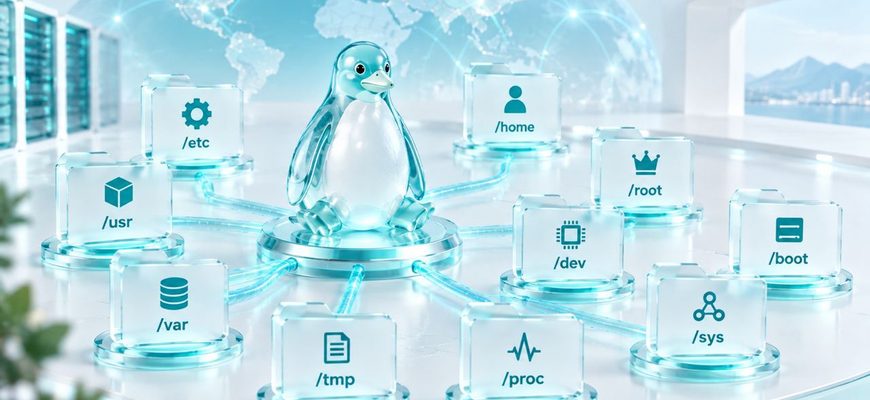
Important directories have different purposes: /etc primarily contains system configuration, /var holds variable data such as logs, /home contains users’ home directories, /tmp is for temporary files, and /usr contains a large share of user-space programs and read-only data.
- Why Linux uses one directory tree beginning at
/. - What the major Linux directories are designed to contain.
- Why
/and/rootmean completely different things. - Where configuration, logs, user data, programs, devices, and runtime information appear.
- How to explore the directory structure safely from the command line.
- 🌳 Linux Uses One Directory Tree
- 📍 Absolute Paths Start at /
- 🗂️ The Main Linux Directories
- ⚙️ /etc — System Configuration
- Where system-wide configuration lives
- 📊 /var — Data That Changes
- Variable data created while the system operates
- 👤 /home — Regular Users’ Files
- Home directories for regular users
- 🔐 /root Is Not the Root Directory
- /
- /root
- /home/user
- 🧊 /tmp — Temporary Files
- Temporary workspace
- 🛠️ /usr — Programs, Libraries, and Shared Data
- A major software hierarchy
- 🚀 /boot — Files Used to Boot the System
- 💾 /dev — Devices Appear as Files
- Interfaces to devices
- 🔍 /proc — A Window Into Processes and the Kernel
- ⚙️ /sys — Devices and Kernel Objects
- ⏱️ /run — Runtime State
- 🧠 A Better Way to Remember the Linux File System
- 🧪 Mini Lab: Explore the Linux Directory Tree
- 1. Find your current location
- 2. Look at the root directory
- 3. Inspect system configuration
- 4. Explore variable data
- 5. Inspect your own home directory
- 6. Look at live process information
- ⚠️ Common Linux File System Mistakes
- Putting the Linux Directory Structure Together
🌳 Linux Uses One Directory Tree
Linux presents files through a hierarchical tree. At the very top is a directory represented by a single slash:
/This is the root directory. Every path in the system ultimately begins from this point.
A simplified Linux directory tree might look like this:
/
├── bin
├── boot
├── dev
├── etc
├── home
│   ├── alice
│   └── bob
├── proc
├── root
├── run
├── sys
├── tmp
├── usr
│   ├── bin
│   ├── lib
│   └── share
└── var
    ├── log
    └── cache
Real systems contain more directories and many more files, but the underlying idea is the same: everything is reachable through one hierarchy.
Do not think of Linux as having separate drive letters such as C: and D:. Storage devices and filesystems can be attached at directories called mount points, allowing them to appear as parts of the same directory tree.
📍 Absolute Paths Start at /
A path tells Linux where a file or directory is located.
An absolute path begins at the root directory. For example:
/var/logYou can read this path from left to right:
Start at the root directory, enter var, then enter log.
A relative path is interpreted from your current working directory instead. This distinction becomes important when navigating the shell, but the directory hierarchy itself always traces back to /.
A path identifies where a name appears in the directory tree, but it is not necessarily the identity of the underlying file. For the next step in this model, see how hard links and symbolic links refer to inodes and paths.
🗂️ The Main Linux Directories
You do not need to memorize every directory immediately. Start with the ones you will encounter repeatedly while administering a server.
| Directory | Main Purpose | Typical Contents |
|---|---|---|
/etc |
System configuration | Configuration files and configuration directories |
/var |
Variable system data | Logs, caches, spools, application state |
/home |
Regular users’ home directories | Personal files and per-user configuration |
/root |
Root user’s home directory | Files belonging to the root account |
/tmp |
Temporary files | Short-lived temporary data |
/usr |
User-space software and read-only data | Programs, libraries, shared data, documentation |
/boot |
Boot-related files | Kernel and bootloader-related data |
/dev |
Device interfaces | Device nodes representing hardware and virtual devices |
/proc |
Kernel and process information | Virtual files exposing runtime information |
/sys |
Kernel device and system information | Virtual representation of devices and kernel objects |
/run |
Runtime state | Data describing the currently running system |
⚙️ /etc — System Configuration
Where system-wide configuration lives
/etc is one of the first places administrators look when configuring Linux and installed services.
Many programs keep system-wide configuration files or configuration directories under /etc. The exact contents depend on the distribution and installed software.
For example, you may encounter configuration associated with networking, SSH, users, package management, system services, and other components here.
You can inspect the directory safely with:
ls /etcThe key mental association is:
/etc → configuration.
Reading configuration files is generally different from editing them. Changes under /etc can affect services or the entire system. Understand the file and keep an appropriate backup before modifying important server configuration.
📊 /var — Data That Changes
Variable data created while the system operates
/var contains data expected to change as applications and the operating system continue running.
A particularly important subdirectory for administrators is:
/var/logTraditionally, many system and application log files are stored there. On systems using systemd’s journal, some logging information may instead or additionally be maintained by systemd-journald, so you should not assume that every useful log must exist as a plain text file in /var/log.
Other areas under /var may contain caches, spool data, application state, and other files whose contents change over time.
The useful association is:
/var → changing system and application data.
👤 /home — Regular Users’ Files
Home directories for regular users
A normal user account commonly has its own directory beneath /home.
For a user named alice, that might be:
/home/aliceA home directory can contain the user’s documents, scripts, downloads, SSH-related files, and hidden configuration files.
Files whose names begin with a dot are hidden from a normal ls listing. To include them, use:
ls -la /home/aliceUse a username that actually exists on your system rather than assuming alice is present.
🔐 /root Is Not the Root Directory
This naming causes a great deal of beginner confusion.
/
The root of the entire filesystem hierarchy. Everything appears somewhere below it.
/root
The conventional home directory of the administrative root user.
/home/user
A typical home directory for a regular user account.
/ and /root therefore describe completely different locations.
If you remember only one distinction from this section, remember:
/ is the root directory; /root is a user’s home directory.
🧊 /tmp — Temporary Files
Temporary workspace
Programs and users can use /tmp for temporary files that do not belong in permanent storage locations.
Do not treat /tmp as permanent storage. Temporary-file cleanup behavior can vary between systems, and files there may be removed according to operating-system policy or during system maintenance.
That makes /tmp useful for disposable working data, not for anything you cannot afford to lose.
🛠️ /usr — Programs, Libraries, and Shared Data
A major software hierarchy
/usr contains a large portion of the user-space software and data installed on a Linux system.
Common subdirectories include:
/usr/bin— many executable commands./usr/lib— libraries and related software data, with details varying by system architecture and distribution./usr/share— architecture-independent shared data./usr/local— a hierarchy traditionally available for software and data installed locally by the administrator.
One historical source of confusion is the relationship between directories such as /bin and /usr/bin. On many modern distributions, the traditional top-level locations are merged with their equivalents under /usr, often through symbolic links. You should therefore inspect the actual system rather than assuming every Linux distribution uses an identical physical layout.
The Linux directory hierarchy is standardized enough to provide a useful mental map, but distributions can implement parts of that map differently. Learn the purpose of each directory before trying to memorize implementation details.
🚀 /boot — Files Used to Boot the System
/boot contains files associated with booting Linux. Depending on the system, this can include Linux kernel images, initial RAM filesystem images, and bootloader-related files.
Unlike directories such as /home, /boot is not an ordinary workspace for user data.
Do not delete files from /boot simply because they look old or consume disk space. Boot files are part of the system’s startup environment, and careless removal can leave a machine unable to boot correctly.
💾 /dev — Devices Appear as Files
Interfaces to devices
/dev contains special device nodes through which software can interact with hardware and virtual devices.
This is connected to a fundamental Unix idea: many resources can be accessed through file-like interfaces.
For example, storage devices and terminals can have entries beneath /dev. These entries are not ordinary documents containing the device’s data. They are interfaces exposed through the filesystem namespace.
🔍 /proc — A Window Into Processes and the Kernel
/proc looks like a normal directory, but it is normally backed by a virtual filesystem rather than ordinary files stored on disk.
It exposes information about the running kernel and processes.
For example, directories with numeric names under /proc correspond to process IDs:
ls /procIf a process has PID 1234, a directory named /proc/1234 can expose information related to that process while it exists.
This creates an important conceptual bridge:
The exact entries available depend on the kernel and process, but the important point is that /proc provides a filesystem interface to live system information.
⚙️ /sys — Devices and Kernel Objects
/sys is another virtual filesystem used to expose information about devices, drivers, and other kernel objects.
As a beginner, you do not need to understand every object beneath it. Remember the conceptual distinction:
/devprovides device nodes used to interact with devices./procexposes process and other kernel information./sysexposes a structured view of devices and kernel objects.
You will encounter these directories frequently when learning hardware detection, storage, networking, containers, and lower-level Linux administration.
⏱️ /run — Runtime State
/run stores volatile information about the system since it booted. Software can use it for runtime state such as PID files, sockets, and other data needed while the system is operating.
The central idea is that /run represents current runtime state, not permanent user data.
Its contents are therefore fundamentally different from persistent configuration in /etc or user files under /home.
🧠 A Better Way to Remember the Linux File System
Trying to memorize a long list of directory names is inefficient. Instead, associate directories with questions you will ask while administering a server.
| If You Are Looking For… | Think About… |
|---|---|
| System configuration | /etc |
| Logs or changing application data | /var |
| A regular user’s personal files | /home |
| The root user’s home | /root |
| Temporary working files | /tmp |
| Installed commands and shared software data | /usr |
| Boot-related files | /boot |
| Device interfaces | /dev |
| Live process information | /proc |
| Device and kernel object information | /sys |
| Current runtime state | /run |
🧪 Mini Lab: Explore the Linux Directory Tree
Goal: Build a mental map of your own Linux system using read-only navigation commands.
1. Find your current location
pwd prints the absolute path of your current working directory.
pwdWhat to observe: The result begins with /, showing where your current directory sits within the Linux hierarchy.
2. Look at the root directory
List the entries directly below /:
ls /What to observe: Compare your system with the directories discussed in this lesson. The exact list can differ between distributions.
3. Inspect system configuration
ls /etcWhat to observe: You should see many files and directories associated with system and installed-software configuration.
4. Explore variable data
ls /varThen, if present on your system:
ls /var/logWhat to observe: Notice how /var is divided into areas for different types of changing data.
5. Inspect your own home directory
ls -la ~What to observe: The tilde ~ is expanded by the shell to your home directory. The -a option also shows entries whose names begin with a dot.
6. Look at live process information
ls /proc/$$What to observe: In common shells, $$ expands to the shell’s process ID. You are therefore looking inside the /proc entry associated with that running shell process.
Result: You have now explored persistent configuration, variable data, user data, and virtual process information without modifying the system.
⚠️ Common Linux File System Mistakes
/ is the top of the entire directory hierarchy. /root is the home directory conventionally used by the root account.
Temporary files can be removed according to system policy. Important files belong in an appropriate persistent location.
/proc is normally a virtual filesystem exposing live kernel and process information. Its entries behave differently from ordinary persistent files.
Configuration changes can alter how services or the operating system behave. Inspect the file, understand its syntax and purpose, and use appropriate backups before making important changes.
Linux systems share important filesystem conventions, but distributions can differ in implementation details, installed directories, symbolic links, package layouts, and service-specific locations.
The directory tree is not just organizational trivia. It is a troubleshooting map. A service fails to start? You may inspect configuration under /etc, service state and logs, runtime data under /run, and relevant application data under /var. Understanding the filesystem tells you where to begin looking.
Putting the Linux Directory Structure Together
The most important idea is not that Linux has a directory called /etc or /var. It is that the directory hierarchy separates different kinds of system data according to purpose.
Configuration belongs in different places from changing application data. User files are separated from boot files. Runtime kernel information can appear through virtual filesystems such as /proc and /sys. Storage devices can be mounted into this same hierarchy instead of receiving independent drive letters.
Once that model becomes familiar, unfamiliar Linux servers become easier to explore. You may not know every installed application, but you already know the kinds of places where its configuration, logs, executables, and runtime information are likely to appear.
- What does the single slash
/represent in Linux? - If you need to investigate system-wide configuration, which directory would usually be one of your first places to inspect, and why?
- What is the difference between
/and/root? - Why should important data not be stored permanently in
/tmp? - Why is
/procdifferent from an ordinary directory containing persistent files? - If a server application is producing changing operational data or traditional log files, which major directory is likely to be relevant?
🎓 Check Your Answers
- The single slash
/is the root directory at the top of the Linux filesystem hierarchy. Every absolute path begins from this tree, directly or through directories beneath it. /etcis usually one of the first places to inspect because it is the conventional hierarchy for system-wide host-specific configuration. The exact configuration files present depend on the distribution and installed software./is the root of the entire filesystem tree, while/rootis conventionally the home directory of the root user. Despite their similar names, they serve completely different purposes./tmpis intended for temporary data, and its contents can be cleaned according to system policy. Files that must survive should therefore be stored in an appropriate persistent location./procis normally a virtual filesystem that exposes live process and kernel information. Its entries are generated from the state of the running system rather than behaving like ordinary persistent documents stored on disk./varis designed for variable data that changes while the system operates. Its subdirectories commonly contain logs, caches, application state, and other changing data, although the exact layout depends on the software and distribution.
Linux presents files, devices, mounted filesystems, and even some live kernel information through one directory hierarchy beginning at /. The major directories exist because different kinds of data have different roles.
Remember the map rather than every detail: /etc for configuration, /var for changing data, /home for regular users, /usr for much of user-space software, /tmp for temporary data, and /proc, /sys, and /dev for important interfaces to the running system.