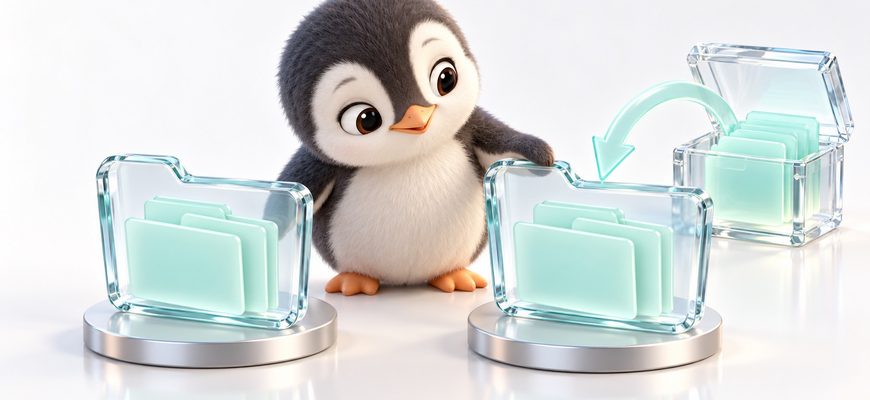
Get the files back. Then check them.
You have an archive and a checksum. Now comes the part that makes the exercise useful: restoring the files into a new directory and checking whether their contents match the originals.
The short answer: verify the saved checksum, extract your trusted archive into an empty test directory, then compare the recovered files with a reference from the same point in time. Keep the original files in place throughout the test.
- 01 · Verify Saved archive Check the original checksum before extraction.
- 02 · Restore New directory Extract into an empty folder created for this test.
- 03 · Compare Recovered files Compare paths and contents with the unchanged source.
Use the backup you already created
This lesson continues
the seven-step archive tutorial.
You need its training directory, unchanged source files,
files.tar.gz and
files.tar.gz.sha256. Use Bash with GNU tar, gzip,
GNU Coreutils, GNU diffutils and find. Work as your ordinary
user, without sudo.
Run every step in the same terminal. If a check fails, stop before extracting or recording a pass. To locate the directory from Lesson 02:
find "$HOME" -maxdepth 1 -type d -name 'sa-backup-lab.*' -print
read -r -p 'Paste the full lab directory path: ' backup_lab
Paste the actual path without surrounding quotes. If several directories appear, choose the one that contains your intended archive. Check the tools and required paths:
command -v tar gzip sha256sum mktemp diff find
tar --version
diff --version
test -d "$backup_lab/source" &&
test -f "$backup_lab/archives/files.tar.gz" &&
test -f "$backup_lab/archives/files.tar.gz.sha256" &&
printf 'Required lab paths found.\n'
Confirm that every tool has a path, tar and diff identify their GNU implementations, and the final message appears. Finding the paths does not yet verify their contents.
What if the original files have changed?
A restored archive represents the time it was created. Comparing it with newer source files may correctly show differences. For this lab, keep the original Lesson 02 files unchanged. In a real recovery test, use a saved inventory or trusted checksums from the backup’s point in time.
Verify the archive before opening it
(
  cd "$backup_lab/archives" &&
  sha256sum --check files.tar.gz.sha256
)
files.tar.gz: OKContinue only if the check succeeds. A failure means the file does not match the recorded checksum, or the check could not be completed. Read the message and investigate; generating a new checksum would hide the original comparison.
tar --list --gzip --file="$backup_lab/archives/files.tar.gz"
Expect the three training files:
./readme.txt,
./notes/todo.txt and
./.demo-settings, plus their directory entries.
Give this restore its own empty directory
Create a unique destination alongside your source and archive directories. Each new attempt should get a fresh directory, so leftover files cannot disguise an incomplete extraction.
restore_dir=$(mktemp -d "$backup_lab/restore.XXXXXX")
printf 'Restore destination: %s\n' "$restore_dir"
Confirm that the command succeeded and printed the new path.
Keep this terminal open: restore_dir points to the
destination used below.
Extract into the directory you just made
tar --extract --gzip \
  --file="$backup_lab/archives/files.tar.gz" \
  --directory="$restore_dir" \
  --no-same-owner --no-same-permissions \
  && printf 'Extraction completed.\n'
--directory sets the extraction destination.
--no-same-owner avoids trying to recreate the
archive’s recorded ownership, while
--no-same-permissions lets your current umask limit
restored permissions. Those choices suit these ordinary
training files.
Wait for successful completion before comparing. An extraction that stops partway through can leave files behind without restoring everything.
find "$restore_dir" -type f -print
cat "$restore_dir/.demo-settings"DEMO_MODE=yesThe find output should contain all three training file paths. The cat output above checks the hidden file’s readable contents.
Look for differences, including missing files
For this small directory of regular files, a recursive comparison checks corresponding file contents and reports entries found only on one side. Passing directories directly includes hidden entries.
if diff -rq -- "$backup_lab/source" "$restore_dir"; then
  restore_compare_status=0
else
  restore_compare_status=$?
fi
printf 'Comparison exit status: %s\n' "$restore_compare_status"
For unchanged Lesson 02 files, expect no difference messages
and an exit status of 0.
| Exit status | Meaning | Next action |
|---|---|---|
| 0 | No differences found by this comparison. | Continue to the metadata review and test record. |
| 1 | Differences were found. | Read the reported paths. Check for changed source data, missing entries or altered contents. |
| 2 | The comparison encountered trouble. | Resolve the error, such as an unreadable path, before treating the result as evidence. |
Does a zero result prove the permissions match?
No. This diff command checks file contents and directory entries, not ownership, permission bits, timestamps, ACLs or extended attributes. This lab contains only regular text files and directories; it is not a complete comparison method for arbitrary system backups.
A file is different. Should I recreate the backup?
First identify which copy changed and when. A source file edited after archiving can differ from a correctly restored older version. Preserve the archive and original checksum while you investigate. Rebuilding the archive immediately removes the recovery point you were trying to examine.
Keep the result specific
Inspect the ownership and permissions of a representative file on both sides:
ls -l "$backup_lab/source/readme.txt" "$restore_dir/readme.txt"A restrictive umask may produce different permission bits after extraction. Decide whether that matches the recovery requirements; matching text does not settle the question. Real services may need a particular account, group or additional metadata.
After the earlier checks succeed, write a small record of the file-content comparison. The block refuses to record a pass unless Step 05 returned zero:
if [ "${restore_compare_status:-2}" -eq 0 ]; then
  printf 'Checked at: %s\nArchive: %s\nRestored to: %s\nFile-content comparison: PASS\n' \
    "$(date -u '+%Y-%m-%dT%H:%M:%SZ')" \
    "$backup_lab/archives/files.tar.gz" \
    "$restore_dir" > "$restore_dir.restore-check.txt"
  printf 'Record: %s\n' "$restore_dir.restore-check.txt"
else
  printf 'No pass recorded. Resolve the comparison result first.\n'
fi
The record sits outside the restored directory, so it does not add a file to the tree you compared. Add your metadata observations, how long the rehearsal took and any steps that needed clarification.
What this rehearsal proves
| Question | Your evidence | Still outside this lab |
|---|---|---|
| Did the archive change? | It matches the saved checksum. | Authenticity if an attacker could replace both files. |
| Can I recover the files? | Extraction completed in a separate directory. | Recovery after losing the original machine or storage account. |
| Do the contents match? | The recursive comparison returned zero against the unchanged source. | Complete ownership, permission and other metadata validation. |
| Will the application work? | This lab does not test an application. | Database restore, service startup, configuration and representative application functions. |
Keep the archive, checksum and test record until you have reviewed the result. For a real application, the next rehearsal belongs in an isolated environment with its dependencies available and production integrations disabled.