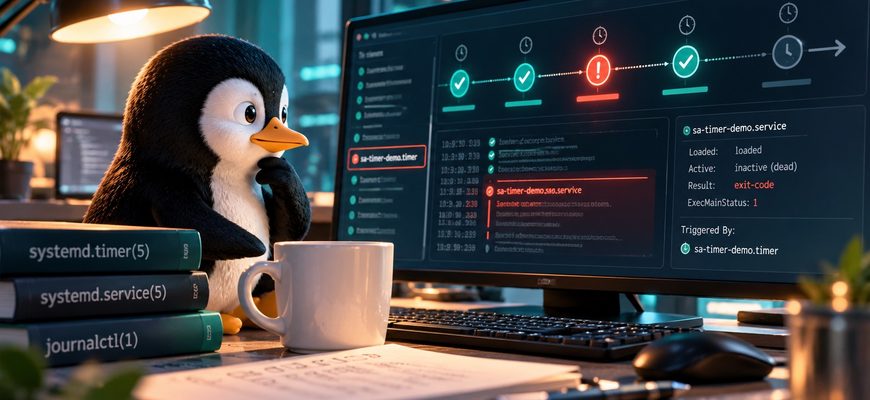
- Your systemd Timer Is Active. Why Didn’t the Job Run?
- Jump to a section
- First, find out which part failed
- Check whether the timer is actually active
- Compare the expected and actual next trigger
- Verify which service the timer activates
- Read the service exit result—not just “inactive”
- Use journalctl to build a timeline
- Validate configuration; rerun only a harmless job
- Explain missed runs, reboots and overlaps
- Choose the next check from the symptom
- A short hypothetical investigation
- Check your understanding
- From systemd timers to trustworthy automation
- Official documentation and related lessons
Your systemd Timer Is Active. Why Didn’t the Job Run?
An active timer does not mean the script completed. Follow the evidence from the next scheduled trigger to the service exit status and journal. These seven checks help you troubleshoot systemd timers without randomly restarting production jobs.

First, find out which part failed
A systemd timer tells Linux when to start work. A service unit tells systemd what to run. The program then succeeds, fails, or produces an unexpected result. Troubleshooting systemd timers as separate stages saves time.
Quick answer:
If a systemd timer is not running a task,
first inspect the .timer with
systemctl status and
systemctl list-timers --all.
Then inspect the matching .service
and its journalctl entries.
Check the calendar expression, unit names,
exit status and execution environment
before making changes.
The commands below use
sa-timer-demo.timer
and sa-timer-demo.service
from the preceding practice lesson.
They are example names,
not systemd built-ins.
Replace them with the exact units on your machine.
The initial checks are read-only;
a later manual start is clearly marked as an action.
Check whether the timer is actually active
Start with the scheduler, not with a restart. A timer may be installed but disabled, enabled for future boots but inactive now, or not loaded at all. These states are different, and they are the first clues when systemd timers stop triggering work.
systemctl status sa-timer-demo.timer --no-pager -l
systemctl is-enabled sa-timer-demo.timer
systemctl is-active sa-timer-demo.timer
Look for the Loaded
and Active lines.
enabled describes whether
the timer is configured to start automatically;
active describes its state now.
Neither proves that the service ran successfully.
Compare the expected and actual next trigger
A healthy timer can still run later than you expect. First inspect the next and last trigger timestamps, then compare the schedule in the actual unit file with the system clock.
systemctl list-timers --all sa-timer-demo.timer
systemctl cat sa-timer-demo.timer
timedatectl status
systemd-analyze calendar --iterations=3 '*-*-* *:00/5:00'
The final command parses the
five-minute example from Lesson 02;
it does not read your live timer automatically.
For another schedule, copy its actual
OnCalendar= value into
the calendar command.
A calendar expression describes wall-clock times;
the machine’s timezone and clock matter
when diagnosing systemd timers.
Verify which service the timer activates
By default, example.timer
activates example.service.
But a timer can override that relationship
with Unit=.
If you inspect the wrong service,
you may conclude nothing ran even when
systemd timers activated a different target.
systemctl cat sa-timer-demo.timer
systemctl cat sa-timer-demo.service
systemctl list-timers --all sa-timer-demo.timer
Read the ACTIVATES column
when it is available, and compare it
with the timer’s Unit= setting.
Check that the service exists and points
to the intended executable.
Important: if the target service is already active when the timer elapses, systemd does not start a second instance of that same unit. This protects against a common kind of overlap, but it also means one long-running service can make later timer events appear to do nothing.
Read the service exit result—not just “inactive”
Now inspect the workload itself.
For a typical Type=oneshot job,
inactive (dead) after completion
can be completely normal.
You need the last result, exit information
and matching journal messages.
systemctl status sa-timer-demo.service --no-pager -l
systemctl show sa-timer-demo.service -p ActiveState -p Result -p ExecMainStatus
A nonzero exit status or a failed unit
is a reason to investigate.
Result=success describes
the service manager’s recorded result—not proof
that a backup file is valid or that a notification
reached its destination.
Check the real output separately;
systemd timers cannot verify application-level
results for you.
| Message or state | Likely meaning | What to check next |
|---|---|---|
inactive (dead)
after oneshot
|
Often a normal completed run | Recent journal entry and workload output. |
status=203/EXEC
|
systemd could not execute the program |
ExecStart= path,
execute permission and script interpreter.
|
status=217/USER
|
Failure while preparing user credentials |
The configured User=
and account availability.
|
Result=exit-code
|
A command returned a failure status | Service journal and the program’s own error output. |
The numeric exit statuses are systemd execution status names, not universal application exit codes. See systemd.exec(5) for the complete list.
Use journalctl to build a timeline
Instead of reading unrelated system messages, narrow the journal to this service and the time window when the problem occurred. Look for the first useful error before the final failed status.
sudo journalctl -u sa-timer-demo.service -b --since "-2 hours" --no-pager -o short-iso
sudo journalctl -u sa-timer-demo.timer -b -n 30 --no-pager
The first command shows service entries from the current boot within the last two hours. The second examines timer-unit messages, if any were recorded. A quiet timer journal does not, by itself, prove that no trigger occurred. If the service prints useful information to stdout or stderr and journal capture is configured, its journal is usually the stronger clue when systemd timers seem silent.
For investigation across restarts,
repeat the service query
without -b
and choose a wider date range.
Older entries may not be present when
the journal is volatile, rotated
or otherwise unavailable.
If you need a detailed guide to filters,
see
journalctl Explained
.
Validate configuration; rerun only a harmless job
If the timer definition and service logs still do not settle the question, verify the unit files. This check does not start the service or modify the schedule.
sudo systemd-analyze verify /etc/systemd/system/sa-timer-demo.timer /etc/systemd/system/sa-timer-demo.service
ls -l /usr/local/bin/sa-timer-demo.sh
systemctl cat sa-timer-demo.service
For the read-only demonstration script from Lesson 02, you may then start the service manually to separate a script failure from a scheduling failure. Do not do this with backups, migrations, payments or destructive maintenance scripts until you know the consequences of a second run.
sudo systemctl start sa-timer-demo.service
sudo journalctl -u sa-timer-demo.service -n 20 --no-pager
In the demo, look for the line beginning with
sa-timer-demo: executed at.
If the manual start works but the scheduled
event does not happen, return to the timer
state and next-trigger checks.
If the manual start fails, examine the service
configuration, script permissions, paths
and runtime environment first.
Explain missed runs, reboots and overlaps
A timer can be correctly configured yet not run while the machine is shut down. The important question is what you expect from systemd timers when the machine comes back online.
| Setting or situation | What it means | Decision |
|---|---|---|
OnCalendar= |
Uses calendar time. | Inspect timezone, schedule and any catch-up requirement. |
Persistent=true |
For calendar timers, can trigger a catch-up activation when the timer starts after one or more occurrences were missed. | Use when one catch-up run is useful; it is not a queue of every missed interval. |
OnBootSec= |
Elapsed-time trigger measured from boot. | Useful for tasks tied to boot, not a fixed wall-clock time. |
| Target service already active | The timer does not spawn a second instance of the same active unit. | Inspect runtime and decide whether the next run needs different timing. |
A machine turned off for three scheduled daily
occurrences does not
automatically replay three separate runs
on startup just because
Persistent=true is set.
The stored trigger state may cause an activation
after the timer comes online;
the service still needs to finish successfully.
This topic is introduced in Lesson 01 and specified in the systemd.timer(5) manual . If the schedule is too frequent for the workload duration, revisit the task design instead of assuming every interval must produce another concurrent process.
Choose the next check from the symptom
Use this as a practical decision table when someone says “the systemd timer is not working.” When troubleshooting systemd timers, start with evidence; change configuration only after identifying a specific problem.
| Observed symptom | First check | Likely next action |
|---|---|---|
The timer is inactive.
|
systemctl status NAME.timer
|
Confirm desired enablement/start state before starting it. |
| The timer has no expected NEXT time. |
systemctl list-timers --all
|
Check the actual OnCalendar=
expression, clock and timer options.
|
| Timer active; script output missing. |
journalctl -u NAME.service
|
Identify whether the service ran and what it reported. |
| Service failed to execute. |
systemctl status NAME.service
|
Check the exact failure status and executable path. |
Oneshot service shows
inactive (dead).
|
Recent journal plus output artifact | Do not restart solely to make the service show active. |
| Nothing ran after power-off. |
Calendar timer and
Persistent=
|
Decide whether one catch-up run is required. |
A short hypothetical investigation
Illustrative scenario · not a reported production incident or tested server
Situation:
A student sets up the disposable five-minute
sa-timer-demo from Lesson 02.
At the end of the lab, the timer says
active (waiting),
but the student cannot find a fresh
output line in the journal.
Check 1:
systemctl list-timers --all sa-timer-demo.timer
shows a future NEXT time.
That is evidence the timer is waiting—not that
its service has already finished.
Check 2:
systemctl cat sa-timer-demo.timer
shows the target
sa-timer-demo.service.
The student verifies the service independently
using the safe manual test.
Check 3:
if the service prints the expected
sa-timer-demo: executed at...
line when started manually,
the script itself is probably not
the immediate issue.
They wait for the next scheduled window,
allow for AccuracySec,
then inspect recent service entries.
If the manual test instead returns a failure,
they investigate that error before changing
the timer.
Takeaway: one status screen cannot answer every question. For systemd timers, timer state establishes scheduling; service status and journal messages establish execution. The missing line might be a timing misunderstanding, a service failure, or a logging query that was too narrow.
Check your understanding
1. The timer is active. Can you conclude the task succeeded?
No. Timer activity concerns scheduling. Read the service result and verify the actual output or artifact.
2. Why might a successful oneshot service say “inactive (dead)”?
The finite task ran and exited. Unless configured to remain active, a successful oneshot service can return to the inactive state normally.
3. What is the safest first response to a missing scheduled run?
Inspect the timer’s active state and next trigger, then check its target service and available journal entries. Do not blindly rerun a production task.
4. Does Persistent=true replay every missed daily run?
No. For an OnCalendar timer, it can cause a catch-up activation when a scheduled occurrence was missed while the timer was inactive. It is not a replay queue for each missed occurrence.
5. What should you suspect if a script works in an interactive shell but fails as a service?
Check the service’s user, executable paths, working directory, environment, permissions and sandboxing restrictions.
Official documentation and related lessons
Systemd features vary across versions.
Use systemctl --version
on your server and prefer the manuals
installed with your distribution
when settings differ.
-
systemd.timer(5)
— target activation, calendar scheduling,
AccuracySec=, andPersistent=. - systemctl(1) — status, show and list-timers.
- journalctl(1) — unit and time-window filters.
- systemd-analyze(1) — unit validation and calendar expressions.
- systemd.service(5) and systemd.exec(5) — oneshot lifecycle and exit statuses.
- journalctl Explained — deeper log reading on Linux.
- How to Create a systemd Service — writing correct unit files.
- Linux Environment Variables Explained — why service processes differ from interactive shells.
- Cron vs systemd Timers — choosing the right scheduler.