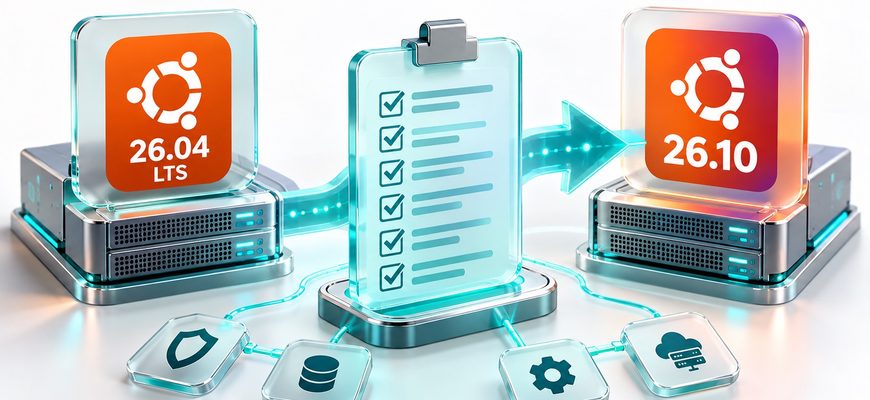
Ubuntu 26.10 is scheduled for release on October 15, 2026. For administrators running Ubuntu 26.04 LTS, the important question is not simply whether a newer version is available. It is whether moving away from an LTS release provides enough operational value to justify a shorter support window, compatibility testing, and a potentially disruptive server upgrade.
This Ubuntu 26.10 server upgrade checklist provides 12 checks to complete before making that decision. It covers release support, packages, SSH access, cryptographic dependencies, storage, backups, application compatibility, maintenance windows, and rollback readiness.
The goal is to reach an evidence-based decision: remain on LTS, test Ubuntu 26.10 in an isolated environment, or plan an upgrade only after confirming that the deployment is supported and appropriate.
Ubuntu 26.10, codenamed Stonking Stingray, is scheduled for October 15, 2026. At the time of this article, it is still a development release. Do not use the development-release upgrade option on a production server simply to obtain it early.
Before any upgrade, check the official release schedule, the Ubuntu 26.10 release notes, and whether Canonical has enabled a supported upgrade path for your current system.
- Quick Answer
- Ubuntu 26.04 LTS vs. Ubuntu 26.10: What Changes?
- Should You Leave Ubuntu 26.04 LTS?
- Stay on LTS
- Evaluate Ubuntu 26.10
- Ubuntu 26.10 Server Upgrade Checklist: 12 Essential Checks
- Upgrade Readiness Review
- Establish the Current Baseline
- Check Compatibility Risks
- Prove Recovery Readiness
- Approve the Change Carefully
- Ubuntu 26.10 Upgrade Decision Matrix
- Read-Only Ubuntu Pre-Upgrade Command Cheat Sheet
- What Not to Do Before Ubuntu 26.10 Is Released
- After the Upgrade: What Must Be Verified?
- Common Ubuntu Upgrade Planning Mistakes
- 1. Assuming a newer release is automatically better for production
- 2. Treating package updates and release upgrades as the same operation
- 3. Relying on snapshots without testing recovery
- 4. Ignoring external packages and authentication integrations
- 5. Upgrading production before staging
- 6. Treating successful boot as complete validation
- Knowledge Check
- Servers Academy — Key Takeaway
- Continue Learning
- Official Technical References
Quick Answer
For most production servers, remaining on Ubuntu 26.04 LTS is the safer default unless Ubuntu 26.10 provides a specific capability your workload requires.
Canonical recommends LTS releases for Ubuntu Server. LTS versions receive five years of standard support, while interim releases receive approximately nine months.
Before leaving LTS, confirm that the new release is available through a supported upgrade path, your applications are compatible, your backups have been restored successfully, and you have a tested recovery plan.
Ubuntu 26.04 LTS vs. Ubuntu 26.10: What Changes?
Ubuntu 26.04 LTS and Ubuntu 26.10 serve different operational needs. The LTS release emphasizes a longer maintenance window and a stable server baseline. An interim release gives administrators earlier access to newer components, but requires a faster future upgrade cycle.
| Factor | Ubuntu 26.04 LTS | Ubuntu 26.10 |
|---|---|---|
| Release type | Long-term support | Interim release |
| Standard support | 5 years | 9 months |
| Primary advantage | Longer maintenance lifecycle | Access to a newer software stack |
| Operational trade-off | Some components may be older | More frequent release upgrades |
| Typical server fit | Long-lived production workloads | Targeted testing and workloads requiring newer components |
| Upgrade decision | Stay unless change is justified | Adopt after compatibility and recovery testing |
A short support lifecycle has practical consequences. Choosing an interim release means planning its replacement much sooner. That future migration also needs testing, maintenance time, and a recovery plan.
Canonical’s Ubuntu Server upgrade documentation recommends LTS for servers and explains the normal release-upgrade process.
Should You Leave Ubuntu 26.04 LTS?
Stay on LTS
Choose this when uptime, a long maintenance horizon, vendor certification, and predictable application support matter more than access to the newest distribution packages.
Evaluate Ubuntu 26.10
Consider a laboratory deployment when your workload needs a specific newer capability and you can verify its dependencies, maintenance requirements, and recovery process.
For an existing production server, the decision is not binary until the relevant compatibility tests are complete. You can remain on LTS in production while evaluating Ubuntu 26.10 in a separate virtual machine.
Ubuntu 26.10 Server Upgrade Checklist: 12 Essential Checks
Work through the following checks in order. Mark an item complete only when you have verified the requirement for your own environment.
The interactive checklist records reviewed items in this browser when local storage is available. It does not inspect your server, execute terminal commands, or authorize an upgrade.
Upgrade Readiness Review
Track verified checks as you evaluate your server.
A full progress bar means the checklist was reviewed. It is not automatic approval to upgrade.
Establish the Current Baseline
Checks 1–3 · Release, packages, storage
Confirm the distribution version, architecture, and kernel. Then verify that Ubuntu offers a supported route to the intended release.
View verification commands and guidance
cat /etc/os-release
uname -r
dpkg --print-architecture
Record the current release from VERSION_ID. If it is not Ubuntu 26.04 LTS, do not assume the same upgrade path applies.
Check the official release documentation before planning an upgrade. A release being scheduled or having beta images available does not mean it is ready for production deployment.
Identify held packages, broken package states, external repositories, and software that may not have packages for Ubuntu 26.10.
View verification commands and guidance
apt-mark showhold
dpkg --audit
apt list --upgradable
These commands inspect package state without performing a release upgrade.
Review repository configuration:
grep -RhsE \
'^(deb |URIs:|Suites:)' \
/etc/apt/sources.list \
/etc/apt/sources.list.d/ \
2>/dev/null
Check whether external repositories, PPAs, custom packages, and vendor agents explicitly support the proposed target release.
Third-party repositories are commonly disabled during Ubuntu release upgrades, while software installed from them may remain on the system. This can create dependency and maintenance problems.
Check available space and inode capacity before planning a transaction that may download, unpack, and configure hundreds of packages.
View verification commands and guidance
df -h
df -i
lsblk -f
Pay particular attention to the root filesystem, /var, package-cache space, and any separate /boot or EFI system partition.
Do not assume a fixed amount of free space is enough for every server. The required headroom depends on the package set, filesystem layout, and upgrade plan.
For a broader diagnostic workflow, see the Linux Server Health Check Checklist.
Check Compatibility Risks
Checks 4–7 · SSH, cryptography, services, hardware
Ubuntu 26.10 separates ordinary OpenSSH packages from variants providing GSSAPI/Kerberos support. This deserves special attention on remotely managed servers.
View verification commands and guidance
dpkg-query -W \
'openssh*' \
'krb5*' 2>/dev/null
On systems running OpenSSH, review the effective server configuration using the available sshd utility and appropriate privileges:
sudo sshd -T
For configurations using Match directives, the effective result may depend on the connection context. Test the actual authentication methods your administrators and automation use.
The official Ubuntu 26.10 release notes explain that GSSAPI/Kerberos support moves to the openssh-gssapi package family. Ubuntu’s release upgrader is designed to detect indications of GSSAPI use and select appropriate packages, but that detection should not replace validation.
Confirm whether access depends on SSH keys, passwords, Kerberos tickets, bastion hosts, or another authentication system.
For a wider access review, use the Linux Server Security Audit Checklist.
Ubuntu 26.10 introduces OpenSSL 4. Applications using OpenSSL libraries, older APIs, custom modules, or PKCS#11 engines may require special compatibility testing.
View verification commands and guidance
openssl version -a

dpkg-query -W \
'openssl' \
'libssl*' 2>/dev/null
These commands report the current system’s package information. They do not establish whether every application will work with OpenSSL 4.
Inventory applications with native OpenSSL dependencies, including custom binaries, authentication components, TLS integrations, and PKCS#11 configurations.
Ubuntu 26.10’s release notes specifically identify the move away from the legacy PKCS#11 engine toward the provider interface.
Test affected applications in an isolated environment using the actual target release.
Confirm that databases, web servers, reverse proxies, monitoring agents, and application runtimes are compatible with the intended package versions.
View verification commands and guidance
systemctl --failed

systemctl list-units \
--type=service \
--state=running \
--no-pager

journalctl -p err -b -n 30 \
--no-pager
These commands provide a baseline of systemd service state and recent errors. Journal access may depend on account permissions.
The Ubuntu 26.10 release notes identify additional compatibility considerations, including HAProxy configuration changes and removal of support for generating systemd services from legacy System V init scripts.
If you use HAProxy, validate its configuration against the version shipped by the target release. If services rely on legacy /etc/init.d scripts, verify that supported native systemd units exist.
For service inspection and safer operational changes, review systemctl Commands Explained.
Verify compatibility for third-party kernel modules, GPU drivers, security agents, storage drivers, and virtualization integrations.
View verification commands and guidance
uname -r
lsmod
systemd-detect-virt
If DKMS is installed, inspect registered modules:
dkms statusThe last command may be unavailable on servers without DKMS.
Inventory any out-of-tree modules, proprietary GPU drivers, backup agents, endpoint security software, VPN components, or vendor tools that rely on particular kernel interfaces.
For cloud systems, check the hosting provider’s supported guest operating systems, image availability, and recovery procedures.
Prove Recovery Readiness
Checks 8–10 · Backups, testing, access
A backup file is not sufficient evidence of recovery. Confirm that critical data can be restored outside the production environment.
View verification commands and guidance
Before planning the upgrade, document:
- The most recent successful backup.
- Coverage of databases, application files, and configurations.
- Independent storage outside the original server.
- Backup encryption and access to recovery keys.
- The result of a recent isolated restoration test.
Filesystem snapshots may be useful, but they are not automatically equivalent to consistent, independent backups.
Use the Linux Server Backup & Restore Checklist to verify data coverage, backup integrity, recovery objectives, and restoration procedures.
Test the migration against a representative copy of the workload before touching the production server.
View verification commands and guidance
A useful staging test should reproduce:
- The source Ubuntu release and package set.
- Relevant third-party repositories and applications.
- Representative application configurations.
- Database engines and compatible test data.
- Authentication and remote access methods.
- Service startup after a full reboot.
Perform the release upgrade only inside the isolated environment and only when an appropriate target-release image or supported upgrade path is available.
Record failures and compare application behavior with the original baseline.
Plan how to recover if SSH, networking, boot, or an important service fails during the release transition.
View verification commands and guidance
Check that you have the necessary recovery capabilities:
- Provider console or equivalent emergency access.
- A verified way to reach the server if SSH fails.
- Documented access credentials and recovery keys.
- Independent backups and compatible recovery media.
- A tested method to restore the previous server state.
Ubuntu does not provide a general supported in-place downgrade from a newer release back to an older LTS version. Recovery usually requires restoration or redeployment from a known-good state.
A snapshot may help where provider support and application consistency are confirmed, but it should not be treated as an automatic rollback guarantee.
Approve the Change Carefully
Checks 11–12 · Maintenance and final decision
Identify the expected interruption, responsible administrator, communication plan, recovery deadline, and tests needed to declare success.
View verification commands and guidance
Document the operational change:
- Approved maintenance date and time.
- Expected customer or application impact.
- Maximum acceptable downtime.
- Recovery-point and recovery-time objectives.
- Required personnel and escalation contacts.
- Application-specific acceptance tests.
A successful reboot does not prove that the application is healthy.
Plan to verify authentication, networking, application responses, database connectivity, background jobs, monitoring, and backups after the change.
Make a final decision based on a documented technical requirement rather than the release number alone.
View verification commands and guidance
Write a short decision record answering:
- Which required capability is missing from the current environment?
- Why is upgrading the operating system the appropriate solution?
- Can the requirement be met while remaining on LTS?
- Are all critical applications compatible?
- Can the team support the shorter interim-release lifecycle?
- Are the staging tests and recovery procedures successful?
If there is no clear operational benefit, remaining on Ubuntu 26.04 LTS is a valid and often preferable outcome.
Ubuntu 26.10 Upgrade Decision Matrix
After completing the Ubuntu 26.10 server upgrade checklist, classify the result rather than treating every checked box as an automatic approval.
| Finding | Decision | Next Action |
|---|---|---|
| No specific requirement for newer packages | Stay on LTS | Continue standard updates and review the requirement later. |
| A needed capability exists, but compatibility is untested | Test First | Build a staging environment and validate applications. |
| Unsupported authentication or critical software | Do Not Upgrade | Resolve the incompatibility or continue using LTS. |
| Backups exist but restoration has not been tested | Do Not Upgrade | Perform a successful isolated recovery test. |
| Supported path, validated applications, successful staging and recovery tests | Plan Change | Schedule an approved maintenance window with monitoring and recovery procedures. |
A completed checklist is evidence that important risks were evaluated. It is not proof that an operating system migration will be problem-free.
For production systems, the strongest evidence combines representative testing, a proven recovery mechanism, and a documented reason to change the operating system.
Read-Only Ubuntu Pre-Upgrade Command Cheat Sheet
The commands below are useful for preparing an initial report. They do not perform a release upgrade.
| Command | Purpose | What to Watch |
|---|---|---|
cat /etc/os-release |
Identify Ubuntu release | Unexpected source version |
uname -r |
Inspect running kernel | Kernel-specific dependencies |
apt-mark showhold |
Find held packages | Unexplained package holds |
dpkg --audit |
Inspect package state | Partially configured packages |
apt list --upgradable |
List available updates | Pending package maintenance |
df -h |
Inspect disk space | Low filesystem headroom |
df -i |
Inspect inode capacity | Filesystem inode exhaustion |
systemctl --failed |
Find failed services | Existing service failures |
openssl version -a |
Inspect current OpenSSL | Dependencies requiring testing |
journalctl -p err -b |
Inspect current-boot errors | Unresolved system problems |
For a deeper explanation of package repositories, dependency resolution, and the difference between ordinary package updates and release upgrades, see Linux Package Management Explained.
What Not to Do Before Ubuntu 26.10 Is Released
As of October 14, 2026, Ubuntu 26.10 is still scheduled for release the following day.
The -d or --devel-release option for do-release-upgrade can select a development release. Canonical does not recommend using this route for production environments.
Do not use a development-release upgrade as a shortcut around release availability.
Also avoid changing repository codenames manually to force a distribution migration. Release upgrades may require coordinated package transitions, configuration handling, removals, and service changes.
Ubuntu Server’s recommended mechanism for a supported release upgrade is do-release-upgrade, but only after the target is released, the relevant upgrade path is available, and the required checks have passed.
Do not run a release-upgrade command merely because the checklist is complete.
First confirm official release availability, upgrade-path support, approved downtime, tested backups, application compatibility, and a working recovery procedure.
After the Upgrade: What Must Be Verified?
A release upgrade is not finished operationally when the package manager exits. It is finished only when the machine has rebooted, the required services are healthy, and application-level tests pass.
| Verification | Expected Evidence |
|---|---|
| Operating system | Expected Ubuntu version reported by the system |
| Boot | Server starts without unresolved critical errors |
| SSH access | Fresh administrative connection succeeds |
| Networking | Required routes, DNS, and service ports work |
| System services | Critical services start and remain healthy |
| Applications | Representative end-to-end requests succeed |
| Database | Application queries and background jobs succeed |
| Monitoring | Alerts, agents, and log collection operate correctly |
| Backups | Backup jobs and recovery tooling remain functional |
If checks fail, preserve the relevant logs and compare results with the pre-upgrade baseline.
Avoid repeatedly restarting services without understanding the failure. Use journalctl Explained to investigate service errors and boot-related messages.
Common Ubuntu Upgrade Planning Mistakes
1. Assuming a newer release is automatically better for production
Newer packages can be valuable, but a server also needs predictable support, vendor compatibility, and operational stability.
2. Treating package updates and release upgrades as the same operation
Updating packages within Ubuntu 26.04 LTS is not the same as moving the entire operating system to Ubuntu 26.10.
3. Relying on snapshots without testing recovery
A snapshot does not guarantee database consistency or successful application recovery.
4. Ignoring external packages and authentication integrations
Third-party repositories, SSH authentication, and cryptographic libraries can be more important to migration success than the kernel version itself.
5. Upgrading production before staging
A laboratory test cannot remove every risk, but it can reveal major compatibility failures before users are affected.
6. Treating successful boot as complete validation
A machine may reboot successfully while database connections, background jobs, application endpoints, or monitoring agents remain broken.
Knowledge Check
Test your understanding before deciding whether to upgrade.
1. Why might Ubuntu 26.04 LTS be preferable to Ubuntu 26.10 for a production server?
An LTS release offers a longer standard maintenance window. If the current environment meets operational requirements, moving to an interim release creates additional compatibility and future upgrade obligations without necessarily providing a useful benefit.
2. Does a successful backup job prove that a server can be recovered?
No. You need evidence that the backup contains the required data and can be restored into a working environment.
3. Why does the Ubuntu 26.10 OpenSSH package split matter?
GSSAPI/Kerberos support is separated into dedicated OpenSSH package variants. Systems relying on that authentication method need specific compatibility checks, even though the release upgrader includes logic intended to detect relevant use.
4. Why is an OpenSSL version check not enough?
Knowing the library version does not prove every application or module is compatible with the target release. Applications, custom binaries, and cryptographic providers must be tested against the intended environment.
5. Can administrators reliably downgrade an upgraded Ubuntu installation to an older LTS release?
A general supported in-place downgrade is not provided. Recovery normally depends on restoring or redeploying a previous known-good system state.
6. What is the strongest reason to move from LTS to an interim release?
A documented technical requirement for capabilities that cannot reasonably be provided within the existing supported environment, combined with proven compatibility, recovery, and operational readiness.
Servers Academy — Key Takeaway
The purpose of an Ubuntu 26.10 server upgrade checklist is not to make every server run the newest Ubuntu release. It is to help administrators understand whether an operating system change is justified and whether the risks are controlled.
Ubuntu 26.04 LTS remains a sensible default for long-lived production workloads. Ubuntu 26.10 may be worth evaluating when its newer software stack addresses a real technical requirement.
Inspect first, establish a baseline, test in isolation, verify recovery, and schedule a change only after the evidence supports it.
Official Technical References
The article uses Ubuntu’s official release schedule, release notes, and upgrade documentation. The release status and version-specific details should be reviewed again after October 15, 2026.